Overview
The Salesforce integration allows you to sync data between Sample and your Salesforce instance. This guide walks you through setting up a new Salesforce connection.Prerequisites
- A Salesforce account with API access
- Admin access to your Sample organization
Recommended: Create a dedicated service account
We recommend creating a dedicated Salesforce service account for the Sample integration rather than connecting with a personal user account. This ensures the connection is not tied to any individual employee and provides better access control. To set up a service account:- In Salesforce Setup, create a new user (e.g.,
sample-integration@yourcompany.com) - Assign a profile or permission set with the following minimum permissions:
- API Enabled — required for all API access
- Read access on any objects you want Sample to sync (e.g., Accounts, Contacts, Opportunities, Cases)
- Create, Edit, and/or Delete on objects you want Sample to write back to
- Avoid granting Modify All Data or View All Data unless necessary — scope permissions to only the objects and fields Sample needs
- Use this service account’s credentials when logging in during Step 5 below
Setting up a connection
Step 1: Navigate to the Salesforce integration
Go to Settings > Integrations > Salesforce in your Sample dashboard.Step 2: Create a new connection
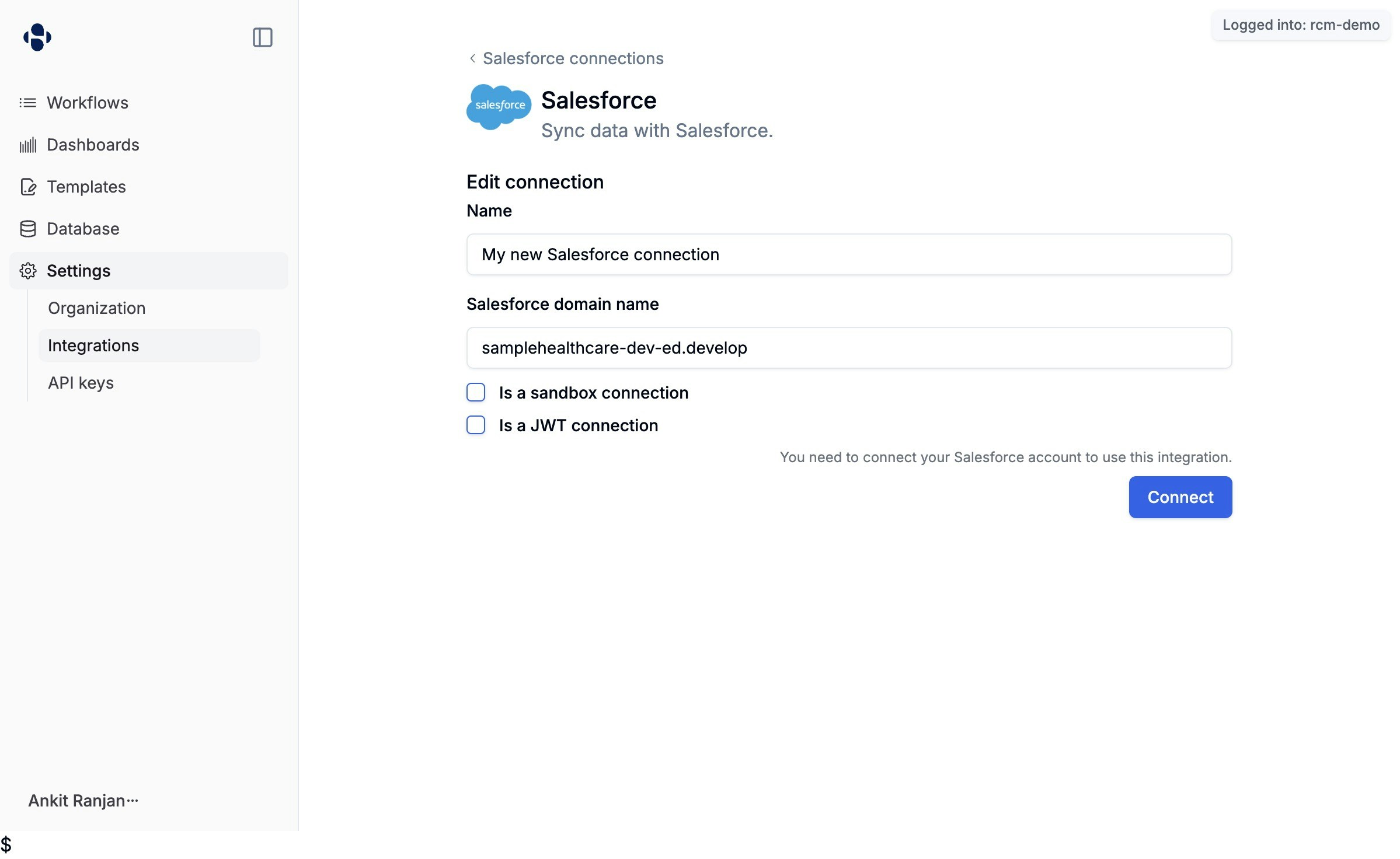
Click New connection to begin setting up a Salesforce connection.Step 3: Enter your Salesforce domain name
In the Salesforce domain name field, enter your Salesforce domain prefix. This is the subdomain of your Salesforce instance (e.g.,samplehealthcare-dev-ed.develop).
Step 4: Enable sandbox mode (if applicable)
If you are connecting to a Salesforce sandbox environment, check the Is a sandbox connection checkbox.Step 5: Log in to Salesforce
Click the Connect button. You will be redirected to the Salesforce login page. Enter your Salesforce username and password, then click Log In.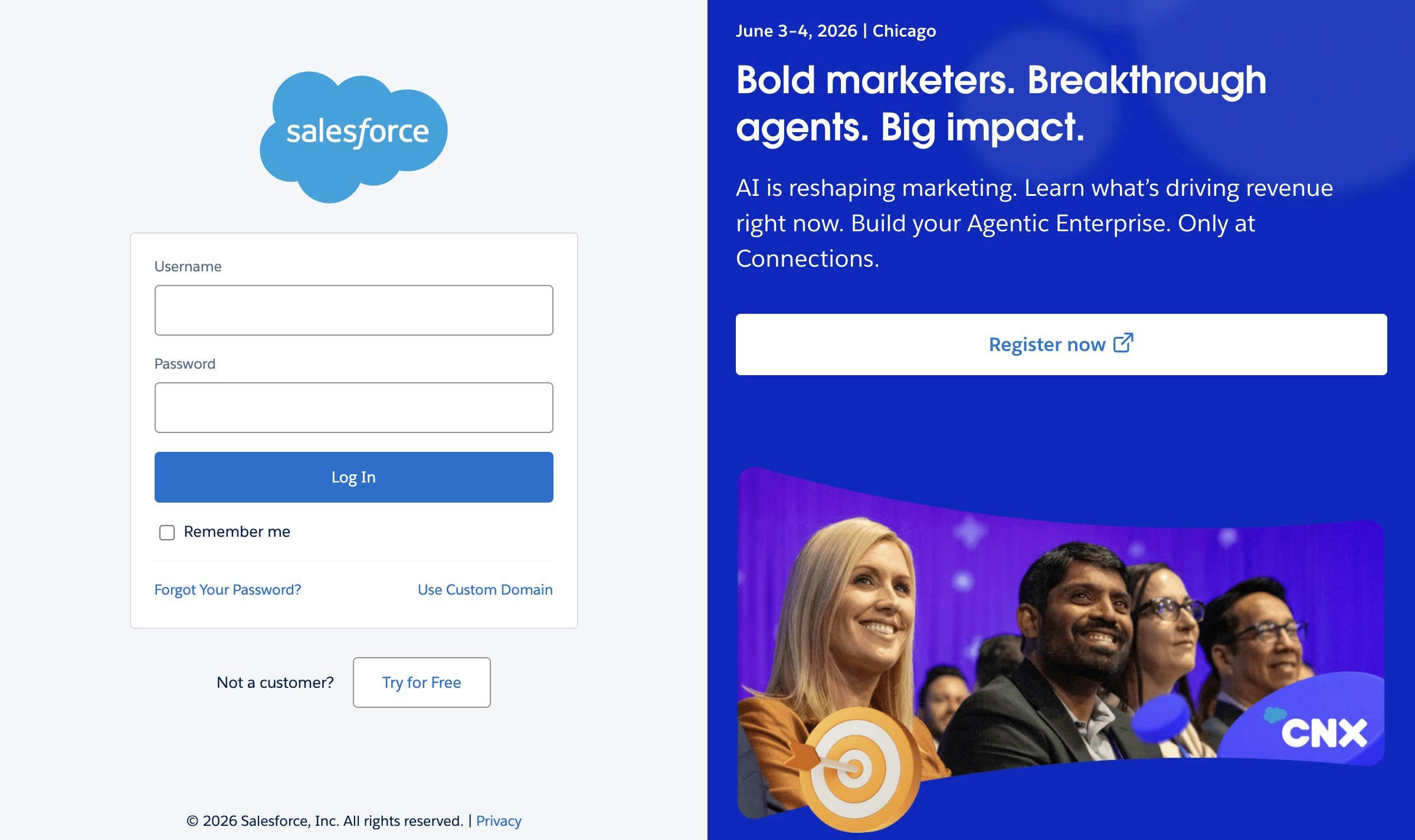
Step 6: Authorize the connection
After logging in, Salesforce will ask you to authorize Sample to access your account. Review the permissions and confirm.Step 7: Verify the connection
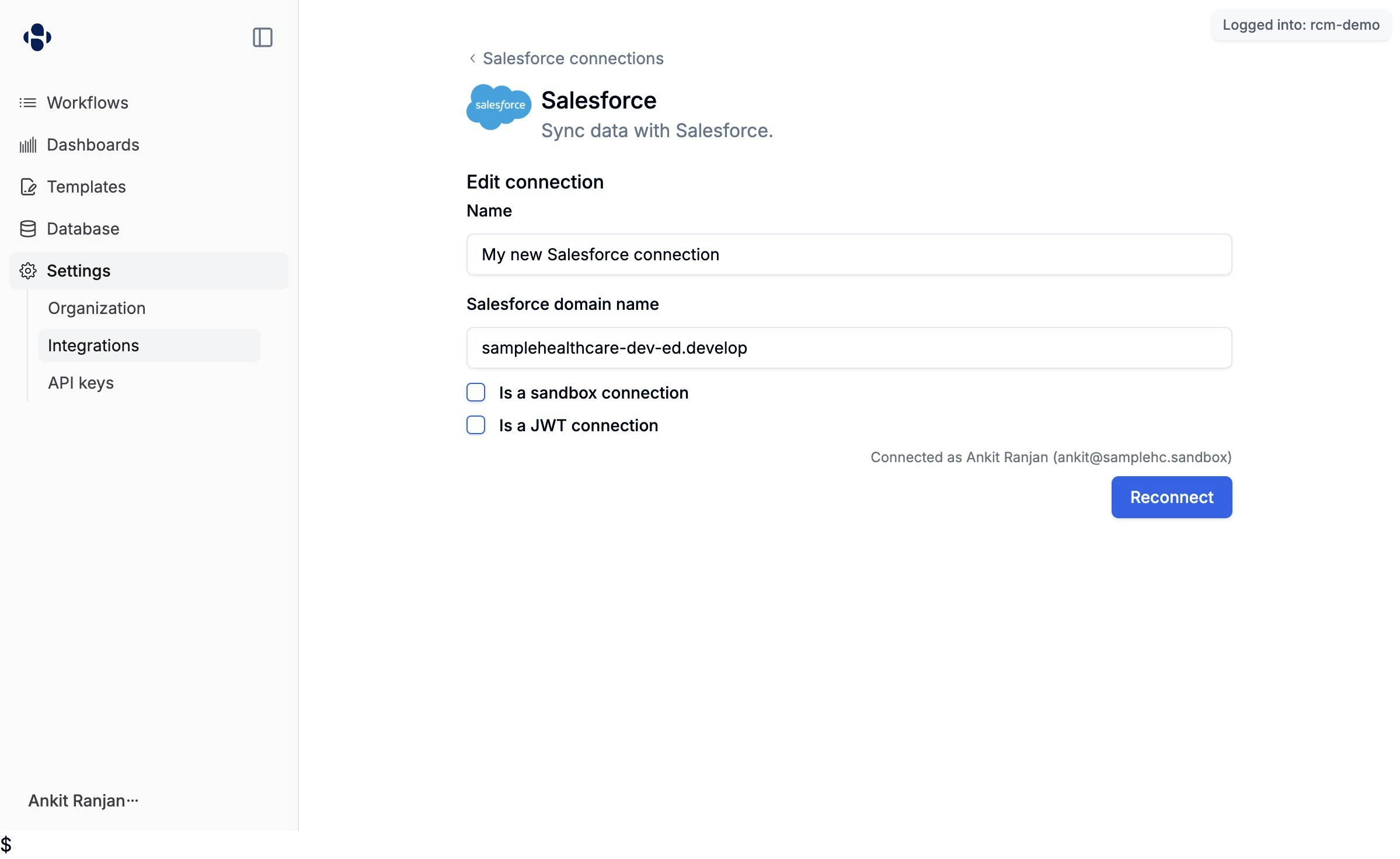
Once authorized, you will be redirected back to Sample. The connection page will show your connected account, confirming the integration is active.