> ## Documentation Index
> Fetch the complete documentation index at: https://docs.samplehc.com/llms.txt
> Use this file to discover all available pages before exploring further.
# Starting Workflows
> How to start a workflow via API
Besides starting a workflow from the Sample Dashboard, you can also start a workflow via API.
## Prerequisites
To start a workflow, you will require two things
1. A SampleHC **API key** (see [Authentication](/guides/authentication))
2. The **slug** (unique identifier) of the workflow you want to start
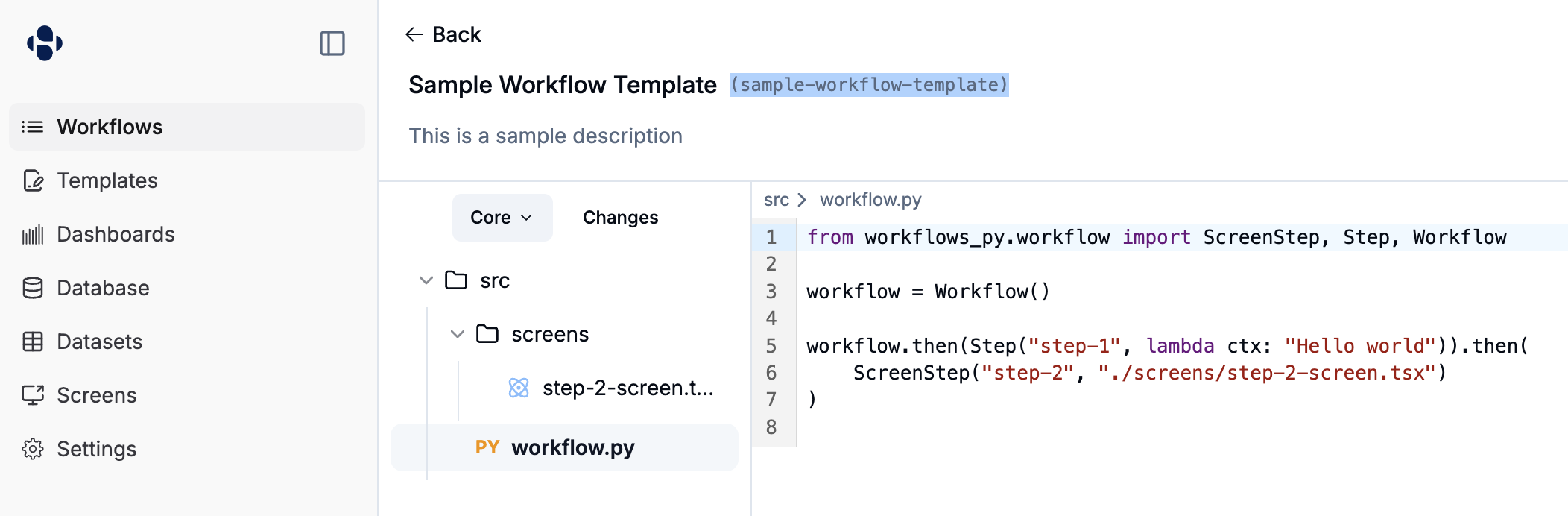
To find a workflow slug, from the workflow page, click the **Edit** button at the top right.
On the edit page, next to the title of the workflow (e.g., **Sample Workflow Template**), you will see the slug (e.g., `sample-workflow-template`).
 ## Making a request
Below are examples of how to start a workflow with different types of request bodies. Remember to replace `YOUR_API_KEY` with your actual API key and `` with the slug of your workflow.
### Using `application/json`
If you want to send data as a JSON object, use the `Content-Type: application/json` header. The body should be a JSON object, optionally containing a `startData` field.
```bash curl theme={null}
curl -X POST \
-H 'Authorization: Bearer YOUR_API_KEY' \
-H 'Content-Type: application/json' \
-d '{"startData": {"name": "First Workflow Instance", "priority": "high"}}' \
https://api.samplehc.com/api/v2/workflows//start
```
### Using `multipart/form-data`
If you need to include files or send data as form fields, use `multipart/form-data`. `curl` will set the `Content-Type` header automatically when you use the `-F` option.
Any form fields you send will be collected into the `startData`. If you send files, they will be processed and their resulting identifiers or content will also be part of `startData`.
```bash curl theme={null}
curl -X POST \
-H 'Authorization: Bearer YOUR_API_KEY' \
-F 'customerName=Acme Corp' \
-F 'orderId=12345' \
-F 'attachmentFile=@/path/to/your/invoice.pdf' \
https://api.samplehc.com/api/v2/workflows//start
```
### Response
A successful request returns the ID of the new workflow run, which you can use
to check its status or cancel it later:
```json theme={null}
{
"workflowRunId": "wfr_xxxxxxxxxxxx",
"nextTaskId": "tsk_xxxxxxxxxxxx"
}
```
* **workflowRunId**: The ID of the newly started workflow run.
* **nextTaskId**: The ID of the first task in the workflow run, or `null` if
the workflow completes synchronously or has no starting task.
## Starting a Workflow from Another Workflow
Workflows can also start other workflows directly through the SDK. This is
useful for kicking off a follow-up process while the current workflow
continues.
```python theme={null}
from client_manager import SampleHealthcareClient
def start_follow_up(ctx):
client = SampleHealthcareClient()
client.v2.workflows.start(
workflow_slug="order-follow-up",
body={"startData": {"order_id": ctx.get_start_data()["order_id"]}},
)
```
If the two workflows don't need to share a direct link, consider
[events](/workflows/events) instead — emitting an event lets any number of
workflows react via `start_on` without the emitter knowing about them.
## Start Data Schema
The `start_data_schema` field in a workflow definition allows you to specify the expected structure and validation rules for data sent when starting a workflow. This schema follows the JSON Schema specification and helps ensure data quality and provides clear documentation of expected inputs.
### Simple Schema Examples
Here are some basic examples of `start_data_schema` definitions:
#### Basic Form Fields
```python theme={null}
from workflows_py.workflow import Workflow
workflow = Workflow(
start_data_schema={
"type": "object",
"properties": {
"patient_name": {
"type": "string",
"description": "Full name of the patient",
},
"patient_age": {
"type": "integer",
"description": "Age in years",
"minimum": 0,
"maximum": 150,
},
"visit_date": {
"type": "string",
"description": "Date of visit in YYYY-MM-DD format",
"pattern": "^\\d{4}-\\d{2}-\\d{2}$",
},
"is_emergency": {
"type": "boolean",
"description": "Whether this is an emergency visit",
},
},
"required": ["patient_name", "visit_date"],
},
)
```
#### File Upload Schema
```python theme={null}
workflow = Workflow(
start_data_schema={
"type": "object",
"properties": {
"document": {
"type": "object",
"properties": {
"id": {
"type": "string",
"description": "File metadata ID",
},
"fileName": {
"type": "string",
"description": "Original file name",
},
},
"description": "Patient enrollment document",
"x-formFieldType": "file",
"x-formFieldOrder": 1,
"x-formFieldLabel": "Upload Document",
},
},
"required": ["document"],
},
)
```
#### Multiple File Upload Schema
For workflows that need to accept multiple files at once, use an array field with `x-formFieldType: "multi-file"`:
```python theme={null}
workflow = Workflow(
start_data_schema={
"type": "object",
"properties": {
"documents": {
"type": "array",
"description": "Upload multiple documents",
"x-formFieldType": "multi-file",
"x-formFieldOrder": 1,
"x-formFieldLabel": "Upload Documents",
"items": {
"type": "object",
"properties": {
"id": {
"type": "string",
"description": "File metadata ID",
},
"fileName": {
"type": "string",
"description": "Original file name",
},
},
},
},
},
"required": ["documents"],
},
)
```
### Complex Schema Examples
#### Medical Workflow with Nested Objects
```python theme={null}
workflow = Workflow(
start_data_schema={
"type": "object",
"properties": {
"document": {
"type": "object",
"properties": {
"id": {
"type": "string",
"description": "File metadata ID",
},
"fileName": {
"type": "string",
"description": "File name",
},
},
"description": "The enrollment form for the patient",
"x-formFieldType": "file",
"x-formFieldOrder": 1,
"x-formFieldLabel": "Enrollment Form",
},
"patient_id": {
"type": "string",
"description": "Patient ID in format P followed by 6 digits",
"pattern": "^P\\d{6}$",
"x-formFieldOrder": 2,
"x-formFieldLabel": "Patient ID",
},
"visit_date": {
"type": "string",
"description": "Date of visit in YYYY-MM-DD format",
"pattern": "^\\d{4}-\\d{2}-\\d{2}$",
},
"patient_age": {
"type": "integer",
"description": "Patient's age in years",
"minimum": 0,
"maximum": 150,
},
"visit_cost": {
"type": "number",
"description": "Cost of the visit in dollars",
"minimum": 0,
},
"is_emergency": {
"type": "boolean",
"description": "Whether this is an emergency visit",
},
"visit_type": {
"type": "string",
"enum": ["routine", "follow-up", "emergency", "consultation"],
"description": "Type of medical visit",
},
"symptoms": {
"type": "array",
"description": "List of symptoms reported by patient",
"items": {"type": "string"},
"minItems": 1,
},
"insurance_info": {
"type": "object",
"description": "Patient's insurance information",
"properties": {
"provider": {
"type": "string",
"description": "Insurance provider name",
},
"policy_number": {
"type": "string",
"description": "Insurance policy number",
},
"copay": {
"type": "number",
"description": "Copay amount",
"minimum": 0,
},
"coverage_details": {
"type": "object",
"description": "Detailed coverage information",
"properties": {
"deductible": {
"type": "number",
"description": "Annual deductible amount",
},
"coverage_percentage": {
"type": "integer",
"description": "Percentage of coverage",
"minimum": 0,
"maximum": 100,
},
},
"required": ["deductible"],
},
},
"required": ["provider", "policy_number"],
},
"email": {
"type": "string",
"format": "email",
"description": "Patient's email address",
},
"phone": {
"type": "string",
"pattern": "^\\+?[1-9]\\d{1,14}$",
"description": "Patient's phone number in international format",
},
},
"required": ["patient_id", "visit_date", "document"],
},
)
```
#### Schema with Hidden Fields
Hidden fields are useful for system-generated values that should be included in the workflow data but not shown to users in the form:
```python theme={null}
workflow = Workflow(
start_data_schema={
"type": "object",
"properties": {
"workflow_id": {
"type": "string",
"description": "System-generated workflow identifier",
"x-formFieldHidden": true,
},
"created_by": {
"type": "string",
"description": "User who initiated the workflow",
"x-formFieldHidden": true,
},
"patient_name": {
"type": "string",
"description": "Patient's full name",
"x-formFieldLabel": "Patient Name",
"x-formFieldOrder": 1,
},
"visit_type": {
"type": "string",
"enum": ["routine", "follow-up", "emergency"],
"description": "Type of visit",
"x-formFieldOrder": 2,
},
"internal_notes": {
"type": "string",
"description": "Internal processing notes",
"x-formFieldHidden": true,
},
},
"required": ["patient_name", "visit_type"],
},
)
```
In this example, `workflow_id`, `created_by`, and `internal_notes` are hidden from the form but can be populated programmatically when the workflow starts.
#### Business Process Schema with Arrays and Enums
```python theme={null}
workflow = Workflow(
start_data_schema={
"type": "object",
"properties": {
"company_info": {
"type": "object",
"description": "Company registration details",
"properties": {
"name": {
"type": "string",
"description": "Legal company name",
"minLength": 2,
"maxLength": 100,
},
"industry": {
"type": "string",
"enum": [
"healthcare",
"finance",
"technology",
"manufacturing",
"retail",
"other"
],
"description": "Primary industry sector",
},
"employees": {
"type": "array",
"description": "List of key employees",
"items": {
"type": "object",
"properties": {
"name": {
"type": "string",
"description": "Employee full name",
},
"position": {
"type": "string",
"description": "Job title",
},
"email": {
"type": "string",
"format": "email",
"description": "Work email address",
},
"is_key_personnel": {
"type": "boolean",
"description": "Whether this is key personnel",
},
},
"required": ["name", "position", "email"],
},
"minItems": 1,
"maxItems": 50,
},
},
"required": ["name", "industry"],
},
"documents": {
"type": "array",
"description": "Required business documents",
"items": {
"type": "object",
"properties": {
"id": {
"type": "string",
"description": "Document metadata ID",
},
"fileName": {
"type": "string",
"description": "Original filename",
},
"document_type": {
"type": "string",
"enum": [
"articles_of_incorporation",
"tax_id_verification",
"operating_agreement",
"other"
],
"description": "Type of business document",
},
},
"required": ["id", "fileName", "document_type"],
},
"minItems": 1,
},
"annual_revenue": {
"type": "number",
"description": "Estimated annual revenue in USD",
"minimum": 0,
"maximum": 1000000000,
},
"setup_date": {
"type": "string",
"format": "date",
"description": "When the company was established",
},
},
"required": ["company_info", "documents"],
},
)
```
### Custom Form Field Extensions
Sample supports custom extensions to enhance form generation:
* `x-formFieldType`: Specifies the UI component type (e.g., "file", "date", "select")
* `x-formFieldLabel`: Custom label for the form field
* `x-formFieldOrder`: Controls the order of fields in generated forms
* `x-formFieldPlaceholder`: Placeholder text for input fields
* `x-formFieldHidden`: Hides the field from the generated form (useful for system-generated values)
### Schema Validation Benefits
Using `start_data_schema` provides several advantages:
1. **Data Validation**: Ensures incoming data meets your requirements before workflow execution
2. **Documentation**: Serves as clear documentation of expected workflow inputs
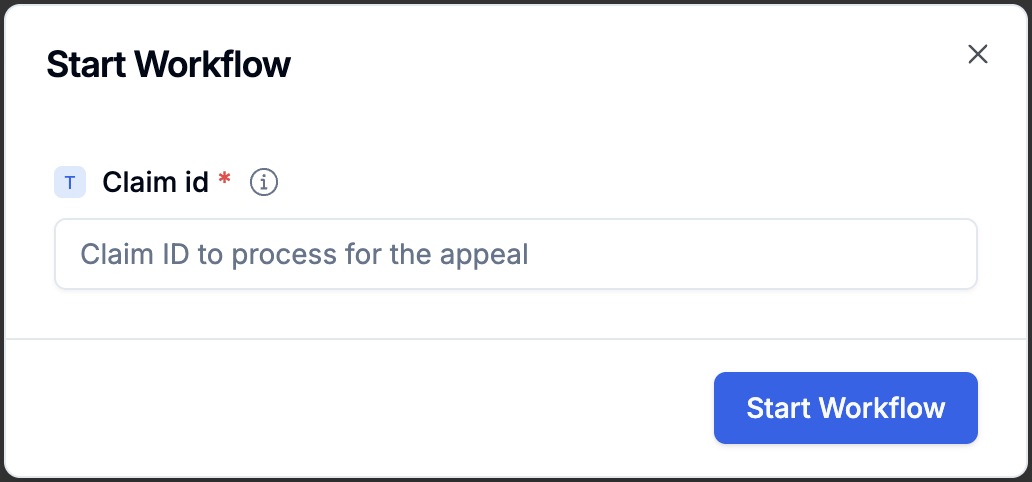
3. **Automatic form creation**: Start data automatically creates a form so there's no additional workflow updates needed
## Making a request
Below are examples of how to start a workflow with different types of request bodies. Remember to replace `YOUR_API_KEY` with your actual API key and `` with the slug of your workflow.
### Using `application/json`
If you want to send data as a JSON object, use the `Content-Type: application/json` header. The body should be a JSON object, optionally containing a `startData` field.
```bash curl theme={null}
curl -X POST \
-H 'Authorization: Bearer YOUR_API_KEY' \
-H 'Content-Type: application/json' \
-d '{"startData": {"name": "First Workflow Instance", "priority": "high"}}' \
https://api.samplehc.com/api/v2/workflows//start
```
### Using `multipart/form-data`
If you need to include files or send data as form fields, use `multipart/form-data`. `curl` will set the `Content-Type` header automatically when you use the `-F` option.
Any form fields you send will be collected into the `startData`. If you send files, they will be processed and their resulting identifiers or content will also be part of `startData`.
```bash curl theme={null}
curl -X POST \
-H 'Authorization: Bearer YOUR_API_KEY' \
-F 'customerName=Acme Corp' \
-F 'orderId=12345' \
-F 'attachmentFile=@/path/to/your/invoice.pdf' \
https://api.samplehc.com/api/v2/workflows//start
```
### Response
A successful request returns the ID of the new workflow run, which you can use
to check its status or cancel it later:
```json theme={null}
{
"workflowRunId": "wfr_xxxxxxxxxxxx",
"nextTaskId": "tsk_xxxxxxxxxxxx"
}
```
* **workflowRunId**: The ID of the newly started workflow run.
* **nextTaskId**: The ID of the first task in the workflow run, or `null` if
the workflow completes synchronously or has no starting task.
## Starting a Workflow from Another Workflow
Workflows can also start other workflows directly through the SDK. This is
useful for kicking off a follow-up process while the current workflow
continues.
```python theme={null}
from client_manager import SampleHealthcareClient
def start_follow_up(ctx):
client = SampleHealthcareClient()
client.v2.workflows.start(
workflow_slug="order-follow-up",
body={"startData": {"order_id": ctx.get_start_data()["order_id"]}},
)
```
If the two workflows don't need to share a direct link, consider
[events](/workflows/events) instead — emitting an event lets any number of
workflows react via `start_on` without the emitter knowing about them.
## Start Data Schema
The `start_data_schema` field in a workflow definition allows you to specify the expected structure and validation rules for data sent when starting a workflow. This schema follows the JSON Schema specification and helps ensure data quality and provides clear documentation of expected inputs.
### Simple Schema Examples
Here are some basic examples of `start_data_schema` definitions:
#### Basic Form Fields
```python theme={null}
from workflows_py.workflow import Workflow
workflow = Workflow(
start_data_schema={
"type": "object",
"properties": {
"patient_name": {
"type": "string",
"description": "Full name of the patient",
},
"patient_age": {
"type": "integer",
"description": "Age in years",
"minimum": 0,
"maximum": 150,
},
"visit_date": {
"type": "string",
"description": "Date of visit in YYYY-MM-DD format",
"pattern": "^\\d{4}-\\d{2}-\\d{2}$",
},
"is_emergency": {
"type": "boolean",
"description": "Whether this is an emergency visit",
},
},
"required": ["patient_name", "visit_date"],
},
)
```
#### File Upload Schema
```python theme={null}
workflow = Workflow(
start_data_schema={
"type": "object",
"properties": {
"document": {
"type": "object",
"properties": {
"id": {
"type": "string",
"description": "File metadata ID",
},
"fileName": {
"type": "string",
"description": "Original file name",
},
},
"description": "Patient enrollment document",
"x-formFieldType": "file",
"x-formFieldOrder": 1,
"x-formFieldLabel": "Upload Document",
},
},
"required": ["document"],
},
)
```
#### Multiple File Upload Schema
For workflows that need to accept multiple files at once, use an array field with `x-formFieldType: "multi-file"`:
```python theme={null}
workflow = Workflow(
start_data_schema={
"type": "object",
"properties": {
"documents": {
"type": "array",
"description": "Upload multiple documents",
"x-formFieldType": "multi-file",
"x-formFieldOrder": 1,
"x-formFieldLabel": "Upload Documents",
"items": {
"type": "object",
"properties": {
"id": {
"type": "string",
"description": "File metadata ID",
},
"fileName": {
"type": "string",
"description": "Original file name",
},
},
},
},
},
"required": ["documents"],
},
)
```
### Complex Schema Examples
#### Medical Workflow with Nested Objects
```python theme={null}
workflow = Workflow(
start_data_schema={
"type": "object",
"properties": {
"document": {
"type": "object",
"properties": {
"id": {
"type": "string",
"description": "File metadata ID",
},
"fileName": {
"type": "string",
"description": "File name",
},
},
"description": "The enrollment form for the patient",
"x-formFieldType": "file",
"x-formFieldOrder": 1,
"x-formFieldLabel": "Enrollment Form",
},
"patient_id": {
"type": "string",
"description": "Patient ID in format P followed by 6 digits",
"pattern": "^P\\d{6}$",
"x-formFieldOrder": 2,
"x-formFieldLabel": "Patient ID",
},
"visit_date": {
"type": "string",
"description": "Date of visit in YYYY-MM-DD format",
"pattern": "^\\d{4}-\\d{2}-\\d{2}$",
},
"patient_age": {
"type": "integer",
"description": "Patient's age in years",
"minimum": 0,
"maximum": 150,
},
"visit_cost": {
"type": "number",
"description": "Cost of the visit in dollars",
"minimum": 0,
},
"is_emergency": {
"type": "boolean",
"description": "Whether this is an emergency visit",
},
"visit_type": {
"type": "string",
"enum": ["routine", "follow-up", "emergency", "consultation"],
"description": "Type of medical visit",
},
"symptoms": {
"type": "array",
"description": "List of symptoms reported by patient",
"items": {"type": "string"},
"minItems": 1,
},
"insurance_info": {
"type": "object",
"description": "Patient's insurance information",
"properties": {
"provider": {
"type": "string",
"description": "Insurance provider name",
},
"policy_number": {
"type": "string",
"description": "Insurance policy number",
},
"copay": {
"type": "number",
"description": "Copay amount",
"minimum": 0,
},
"coverage_details": {
"type": "object",
"description": "Detailed coverage information",
"properties": {
"deductible": {
"type": "number",
"description": "Annual deductible amount",
},
"coverage_percentage": {
"type": "integer",
"description": "Percentage of coverage",
"minimum": 0,
"maximum": 100,
},
},
"required": ["deductible"],
},
},
"required": ["provider", "policy_number"],
},
"email": {
"type": "string",
"format": "email",
"description": "Patient's email address",
},
"phone": {
"type": "string",
"pattern": "^\\+?[1-9]\\d{1,14}$",
"description": "Patient's phone number in international format",
},
},
"required": ["patient_id", "visit_date", "document"],
},
)
```
#### Schema with Hidden Fields
Hidden fields are useful for system-generated values that should be included in the workflow data but not shown to users in the form:
```python theme={null}
workflow = Workflow(
start_data_schema={
"type": "object",
"properties": {
"workflow_id": {
"type": "string",
"description": "System-generated workflow identifier",
"x-formFieldHidden": true,
},
"created_by": {
"type": "string",
"description": "User who initiated the workflow",
"x-formFieldHidden": true,
},
"patient_name": {
"type": "string",
"description": "Patient's full name",
"x-formFieldLabel": "Patient Name",
"x-formFieldOrder": 1,
},
"visit_type": {
"type": "string",
"enum": ["routine", "follow-up", "emergency"],
"description": "Type of visit",
"x-formFieldOrder": 2,
},
"internal_notes": {
"type": "string",
"description": "Internal processing notes",
"x-formFieldHidden": true,
},
},
"required": ["patient_name", "visit_type"],
},
)
```
In this example, `workflow_id`, `created_by`, and `internal_notes` are hidden from the form but can be populated programmatically when the workflow starts.
#### Business Process Schema with Arrays and Enums
```python theme={null}
workflow = Workflow(
start_data_schema={
"type": "object",
"properties": {
"company_info": {
"type": "object",
"description": "Company registration details",
"properties": {
"name": {
"type": "string",
"description": "Legal company name",
"minLength": 2,
"maxLength": 100,
},
"industry": {
"type": "string",
"enum": [
"healthcare",
"finance",
"technology",
"manufacturing",
"retail",
"other"
],
"description": "Primary industry sector",
},
"employees": {
"type": "array",
"description": "List of key employees",
"items": {
"type": "object",
"properties": {
"name": {
"type": "string",
"description": "Employee full name",
},
"position": {
"type": "string",
"description": "Job title",
},
"email": {
"type": "string",
"format": "email",
"description": "Work email address",
},
"is_key_personnel": {
"type": "boolean",
"description": "Whether this is key personnel",
},
},
"required": ["name", "position", "email"],
},
"minItems": 1,
"maxItems": 50,
},
},
"required": ["name", "industry"],
},
"documents": {
"type": "array",
"description": "Required business documents",
"items": {
"type": "object",
"properties": {
"id": {
"type": "string",
"description": "Document metadata ID",
},
"fileName": {
"type": "string",
"description": "Original filename",
},
"document_type": {
"type": "string",
"enum": [
"articles_of_incorporation",
"tax_id_verification",
"operating_agreement",
"other"
],
"description": "Type of business document",
},
},
"required": ["id", "fileName", "document_type"],
},
"minItems": 1,
},
"annual_revenue": {
"type": "number",
"description": "Estimated annual revenue in USD",
"minimum": 0,
"maximum": 1000000000,
},
"setup_date": {
"type": "string",
"format": "date",
"description": "When the company was established",
},
},
"required": ["company_info", "documents"],
},
)
```
### Custom Form Field Extensions
Sample supports custom extensions to enhance form generation:
* `x-formFieldType`: Specifies the UI component type (e.g., "file", "date", "select")
* `x-formFieldLabel`: Custom label for the form field
* `x-formFieldOrder`: Controls the order of fields in generated forms
* `x-formFieldPlaceholder`: Placeholder text for input fields
* `x-formFieldHidden`: Hides the field from the generated form (useful for system-generated values)
### Schema Validation Benefits
Using `start_data_schema` provides several advantages:
1. **Data Validation**: Ensures incoming data meets your requirements before workflow execution
2. **Documentation**: Serves as clear documentation of expected workflow inputs
3. **Automatic form creation**: Start data automatically creates a form so there's no additional workflow updates needed
 ## Cron Scheduling
Cron schedule functionality requires **samplehc >= 0.3.0** and **workflows-py >= 0.1.19** and requires an updated `lambda_handler.py` file.
Besides starting workflows manually via API or dashboard, workflows can also be automatically started on a recurring schedule using cron expressions. This is configured at the workflow level using the `cron_schedule` parameter in the `Workflow` constructor.
### Setting Up Cron Scheduling
To schedule a workflow to run automatically, pass a cron expression string to the `cron_schedule` parameter:
```python theme={null}
from workflows_py.workflow import Workflow, Step
workflow = Workflow(
cron_schedule="0 9 * * 1-5", # Run at 9 AM Monday through Friday
start_data_schema={
"reportType": {"type": "string", "default": "daily"},
"timestamp": {"type": "string", "format": "date-time"}
}
)
workflow.then(
Step("generate-report", generate_daily_report_function)
)
```
### Cron Expression Format
Cron expressions use five fields separated by spaces:
```
┌───────────── minute (0 - 59)
│ ┌───────────── hour (0 - 23)
│ │ ┌───────────── day of month (1 - 31)
│ │ │ ┌───────────── month (1 - 12)
│ │ │ │ ┌───────────── day of week (0 - 6, Sunday to Saturday)
│ │ │ │ │
* * * * *
```
### Common Cron Examples
```python theme={null}
# Every day at 8:00 AM
cron_schedule="0 8 * * *"
# Every weekday at 9:00 AM
cron_schedule="0 9 * * 1-5"
# Every hour on the hour
cron_schedule="0 * * * *"
# Every 15 minutes
cron_schedule="*/15 * * * *"
# First day of every month at midnight
cron_schedule="0 0 1 * *"
# Every Sunday at 3:00 PM
cron_schedule="0 15 * * 0"
```
### Scheduled Workflow Behavior
When a workflow runs on a cron schedule:
* The workflow starts automatically at the specified time
* No manual trigger or start data is required unless specified in `start_data_schema`
* The workflow runs with an empty start data context unless configured otherwise
* Multiple scheduled instances can run simultaneously if the schedule frequency is higher than workflow execution time
### Combining Cron Scheduling with Start Data Schema
Cron scheduling works alongside start data schemas to provide structured data to scheduled workflows:
```python theme={null}
workflow = Workflow(
cron_schedule="0 6 * * *", # Daily at 6 AM
start_data_schema={
"type": "object",
"properties": {
"reportType": {
"type": "string",
"enum": ["daily", "weekly", "monthly"],
"default": "daily",
"description": "Type of report to generate"
},
"timestamp": {
"type": "string",
"format": "date-time",
"description": "When the report was scheduled"
},
"includeMetrics": {
"type": "boolean",
"default": true,
"description": "Whether to include performance metrics"
}
}
}
)
```
### Best Practices for Scheduled Workflows
1. **Use appropriate timing**: Consider system load and business hours
2. **Handle failures gracefully**: Include error handling for automated runs
3. **Set up monitoring**: Track scheduled workflow execution and failures
4. **Test thoroughly**: Verify cron expressions work as expected before production
5. **Consider time zones**: Ensure cron times align with business requirements
6. **Use start data defaults**: Provide sensible defaults in your start data schema for scheduled runs
### Monitoring Scheduled Workflows
Scheduled workflows appear in the workflow dashboard just like manually triggered workflows. You can:
* View execution history and status
* Monitor for failed scheduled runs
* See the next scheduled execution time
* Manually trigger workflows outside of their schedule if needed
## Cron Scheduling
Cron schedule functionality requires **samplehc >= 0.3.0** and **workflows-py >= 0.1.19** and requires an updated `lambda_handler.py` file.
Besides starting workflows manually via API or dashboard, workflows can also be automatically started on a recurring schedule using cron expressions. This is configured at the workflow level using the `cron_schedule` parameter in the `Workflow` constructor.
### Setting Up Cron Scheduling
To schedule a workflow to run automatically, pass a cron expression string to the `cron_schedule` parameter:
```python theme={null}
from workflows_py.workflow import Workflow, Step
workflow = Workflow(
cron_schedule="0 9 * * 1-5", # Run at 9 AM Monday through Friday
start_data_schema={
"reportType": {"type": "string", "default": "daily"},
"timestamp": {"type": "string", "format": "date-time"}
}
)
workflow.then(
Step("generate-report", generate_daily_report_function)
)
```
### Cron Expression Format
Cron expressions use five fields separated by spaces:
```
┌───────────── minute (0 - 59)
│ ┌───────────── hour (0 - 23)
│ │ ┌───────────── day of month (1 - 31)
│ │ │ ┌───────────── month (1 - 12)
│ │ │ │ ┌───────────── day of week (0 - 6, Sunday to Saturday)
│ │ │ │ │
* * * * *
```
### Common Cron Examples
```python theme={null}
# Every day at 8:00 AM
cron_schedule="0 8 * * *"
# Every weekday at 9:00 AM
cron_schedule="0 9 * * 1-5"
# Every hour on the hour
cron_schedule="0 * * * *"
# Every 15 minutes
cron_schedule="*/15 * * * *"
# First day of every month at midnight
cron_schedule="0 0 1 * *"
# Every Sunday at 3:00 PM
cron_schedule="0 15 * * 0"
```
### Scheduled Workflow Behavior
When a workflow runs on a cron schedule:
* The workflow starts automatically at the specified time
* No manual trigger or start data is required unless specified in `start_data_schema`
* The workflow runs with an empty start data context unless configured otherwise
* Multiple scheduled instances can run simultaneously if the schedule frequency is higher than workflow execution time
### Combining Cron Scheduling with Start Data Schema
Cron scheduling works alongside start data schemas to provide structured data to scheduled workflows:
```python theme={null}
workflow = Workflow(
cron_schedule="0 6 * * *", # Daily at 6 AM
start_data_schema={
"type": "object",
"properties": {
"reportType": {
"type": "string",
"enum": ["daily", "weekly", "monthly"],
"default": "daily",
"description": "Type of report to generate"
},
"timestamp": {
"type": "string",
"format": "date-time",
"description": "When the report was scheduled"
},
"includeMetrics": {
"type": "boolean",
"default": true,
"description": "Whether to include performance metrics"
}
}
}
)
```
### Best Practices for Scheduled Workflows
1. **Use appropriate timing**: Consider system load and business hours
2. **Handle failures gracefully**: Include error handling for automated runs
3. **Set up monitoring**: Track scheduled workflow execution and failures
4. **Test thoroughly**: Verify cron expressions work as expected before production
5. **Consider time zones**: Ensure cron times align with business requirements
6. **Use start data defaults**: Provide sensible defaults in your start data schema for scheduled runs
### Monitoring Scheduled Workflows
Scheduled workflows appear in the workflow dashboard just like manually triggered workflows. You can:
* View execution history and status
* Monitor for failed scheduled runs
* See the next scheduled execution time
* Manually trigger workflows outside of their schedule if needed